
It’s easy to spend a lot of time on smartphones and other devices without noticing, due to their many uses.
There are no concrete guidelines on the amount of time that should be spent online. Although some studies show that children who spend increased time on social media apps suffer from poorer mental health than their counterparts who do not use them, this may be correlation rather than causation. Experts also note possible links between screen use and problems such as sleep disruption, obesity and eye strain.
Meanwhile, active screen time, through creating art, music, writing, or programming, is increasingly being recognised as more beneficial than passive scrolling.
Each family will take a unique approach to managing screen time. Here are some tips to consider:
Set a maximum screen time: setting specific tech times, or broader tech periods – late afternoon, for instance – may work well, while adults can participate in this too.
Encourage screen breaks: practice the Pomodoro method to stick to 25-minute intervals, using your phone’s timer. When the timer buzzes, take a break from your screen.
Promote a balanced use of screen time: talk to your family about engaging in creative activities online, to minimise passive screen time.
Make a master list of offline activity ideas: this will provide an easy backup plan when boredom strikes, if kept in a communal area such as your kitchen.
Designate phone-free times and zones: establish a few parts of your home, and activities, where screens are not permitted, for example the dining table or bedtime.
Avoid judgement when talking to older teenagers: to keep up an ongoing conversation about their behaviour online, avoid strong reactions to the amount of time young adults spend on their devices.
How to manage screen time on smartphones
Parents can easily turn on screen time settings on iOS and Android devices to help children develop healthy screen time habits and focus on offline activities, either remotely from your own device, or directly on your child’s device.
Remotely on iOS devices:
Setting up Screen Time and a passcode
On the Settings app, tap Screen Time
Tap Turn on Screen Time
Under Family, choose your child's name
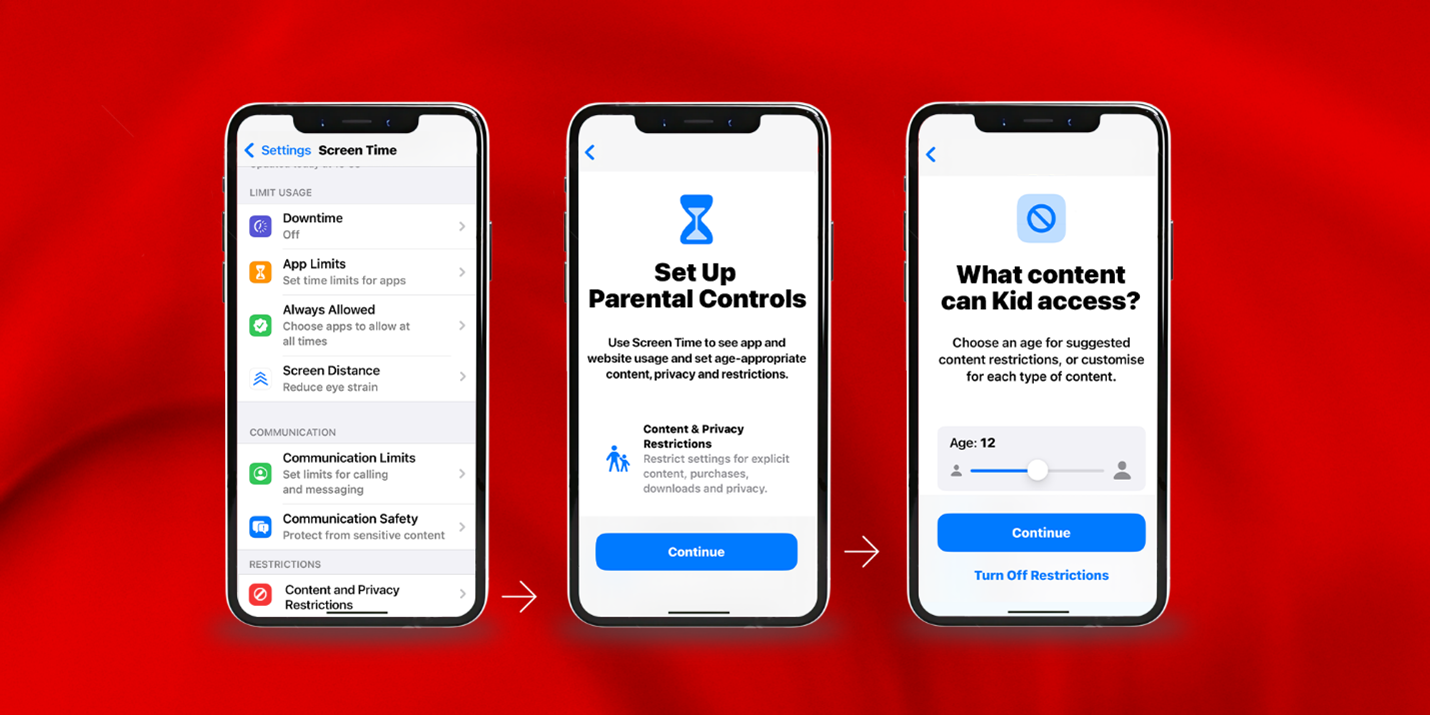
Follow the onscreen instructions to set age-appropriate Content & Privacy restrictions, get a weekly Screen Time report, turn on other Screen Time settings, and lock the Screen Time settings and parental controls.
Setting Content and Privacy Restrictions
On the Settings app, tap Screen Time
Under Family, choose your child's name
Tap Content & Privacy Restrictions
Choose specific content and privacy options, including an age for suggested content restrictions.
Setting App Limits Remotely
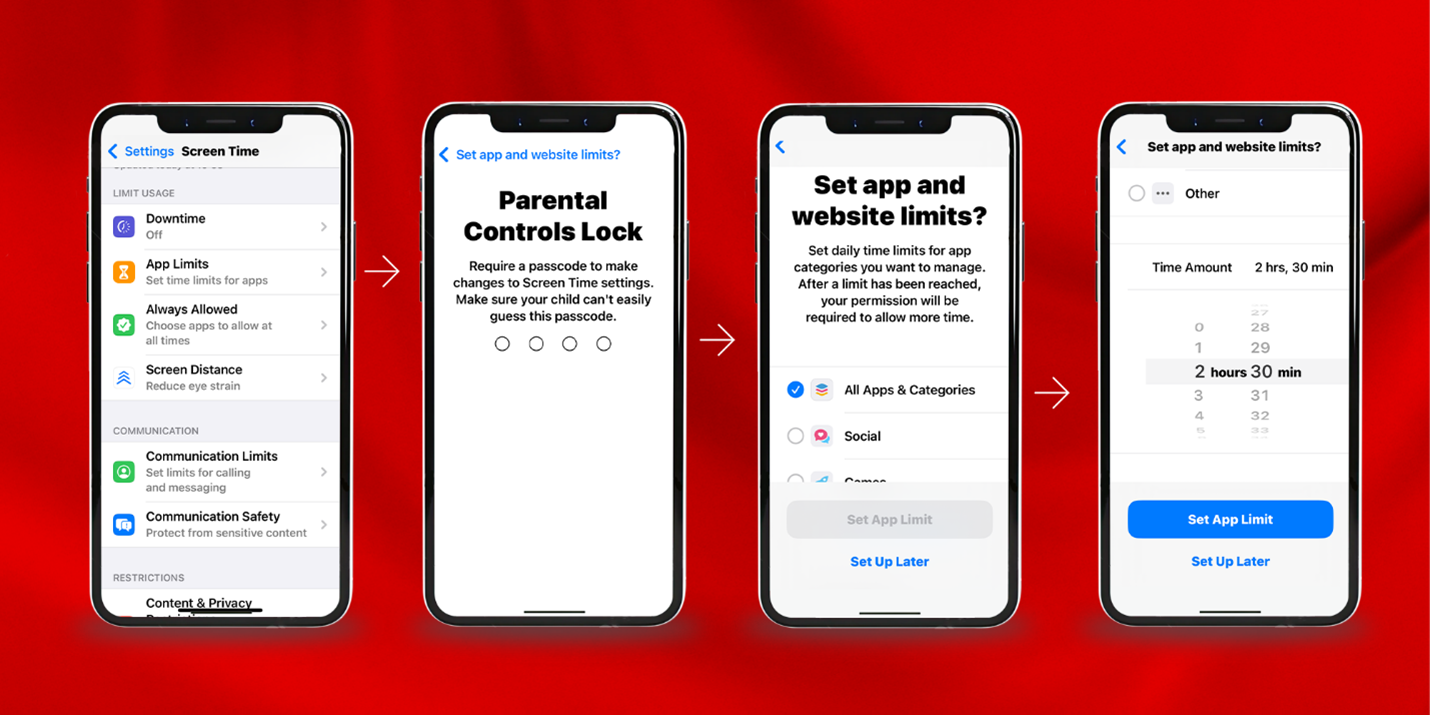
In Screen Time, tap App Limits, then Add Limit
Enter Screen Time passcode when prompted
Select the app categories you want to limit, then tap Next to set the amount of time allowed
Tap Add.
Scheduling Downtime
In Screen Time, select your child’s name under Family
Tap App & Website Activity
Tap Downtime
Select Turn on Downtime Until Tomorrow or Scheduled
Set the start and end times. During Downtime, only apps you choose to allow and phone calls will be available.
Remotely on Android devices:
Setting up daily limits for the first time using the Family Link app
On your device, open the Family Link app
Select your child’s account
At the bottom centre, tap Controls
Under “Daily limit,” tap Set up
Select the hours and minutes you'd like to set for the limit.
Changing today’s limit with a parent’s device
On your device, open the Family Link app
Select your child’s account
At the bottom centre, tap Controls
Under “Daily limit,” tap Change for today
Select the hours and minutes you’d like to set for the limit, and tap Done.
Changing the weekly limit schedule with a parent’s device
On your device, open the Family Link app
Select your child’s account
At the bottom centre, tap Controls
Under “Daily limit,” tap Edit weekly schedule
Select the days you’d like to limit screen time.
Allowing or blocking apps on Family Link
On your device, open the Family Link app
Select your child’s account
Tap Controls > App Limits
Select the name of the app you want to allow or block
Tap Block > Done.
Directly on your child’s Android device:
Setting a daily limit
On your child's device, open Settings
On Android versions 8.1 (O) and later, tap Digital Wellbeing & parental controls
On other Android versions, tap Google > Parental controls
To view the current settings, tap Daily limit
To edit Daily limit settings, sign in or use your Parent Access Code to verify that you're a parent.
Setting up downtime and editing weekly downtime schedule
On your child's device, open Settings
On Android versions 8.1 (O) and later, tap Digital Wellbeing & parental controls
On other Android versions, tap Google > Parental controls
To view the current settings, tap Downtime
To edit Downtime settings, sign in or use your Parent Access Code to verify that you're a parent.
At Vodafone, we want everyone to get the most out of tech and enjoy happy - and safe - digital lives. You can find resources and support to help you make the right digital choices for your family on our Digital Balance Hub: www.vodafone.com/digitalbalance
More stories